
Back to Blog
Minecraft IRL: How to Build a 3D Steve with Perler Beads (Pattern Included)
Pixelbeads Studio / May 20, 2026

Pixelbeads Studio / May 20, 2026
Minecraft is built on blocks, just like perler beads. While making a flat sword or pickaxe is a fun start, bringing your game to life with a standing 3D Steve figure is the ultimate crafting level-up.
In this guide, we will show you exactly how to turn digital voxels into a physical masterpiece that snaps together like a real-life puzzle.
Creating a 3D figure used to mean guessing colors and struggling with loose joints. Not anymore. You can skip the guesswork and use our AI pixel art generator right now. It is the fastest way to turn any skin into a precise blueprint and download your own custom Minecraft Perler bead patterns PDF.
Ready to build? Here is everything you need to know, from the gear list to the perfect melting technique.
Most beginners stick to flat designs because 3D seems intimidating. But for Perler bead Minecraft projects, going 3D is actually quite intuitive. You are entering the exciting world of "Voxel" crafting.
The secret isn't necessarily glue (though you can use it); it is interlocking patterns. Think of it like a puzzle. By leaving specific gaps in your bead layout—known as "finger joints"—you create teeth that snap together. It’s sturdy, satisfying to build, and looks exactly like the blocky characters from the game.
Building in 3D requires a bit more precision than flat sprites. Before you start placing your perler beads, make sure you have the right setup:
Before you touch a single bead, you need a plan.
Searching for high-quality Perler beads Minecraft patterns on Google Images can be frustrating. Often, the resolution is too low, or the colors don't match the beads you own.
Here is the better way:
Minecraft skins are stored as flat, unfolded images (like a deconstructed box). When you upload this raw skin file to our AI tool, you might initially see a jumble of body parts.
To build a 3D Steve, you are essentially building hollow boxes. You will need to lay out the beads on your pegboard for the following parts:
Note:
If you are following an interlocking pattern from your PDF, ensure you copy the "teeth" on the edges exactly as shown. One missing bead can make assembly impossible!
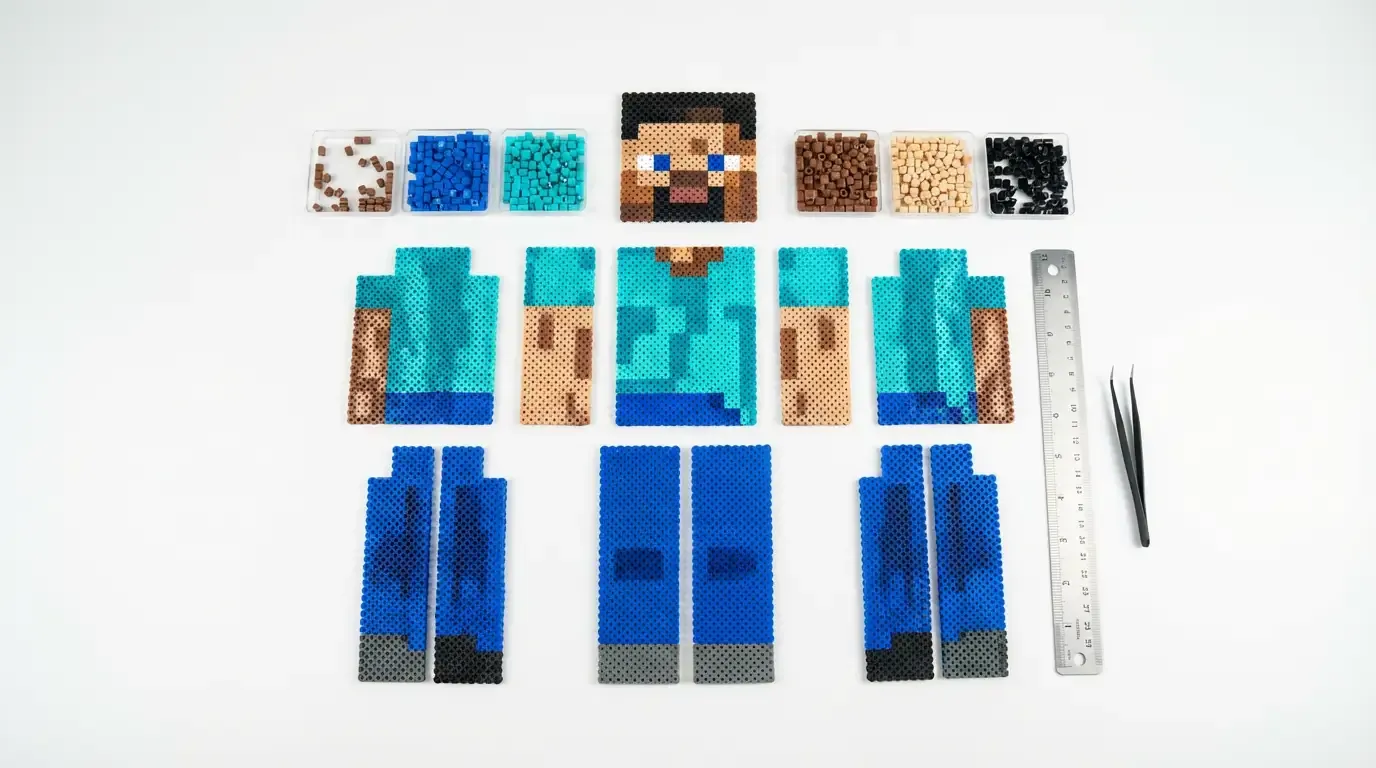
This is the most common question we get: "How to melt pixel art?" especially for 3D projects.
When making flat coasters, you can iron them however you like. But for 3D projects, the ironing technique makes or breaks the build.
For 3D parts to fit together, you need to control the heat.
Crucial Tip:
Iron both sides lightly rather than one side heavily. This keeps the plastic straight.
As soon as you finish ironing, place a heavy book on the pieces while they cool. Do not skip this step.
Warped pieces do not fit together!
Even with the best Perler beads Minecraft patterns, things can go wrong during assembly. Here is how to fix common issues:
Now that you know how to build a 3D Steve, you aren't limited to the default characters.
The beauty of Minecraft is creativity, and the beauty of our AI tool is versatility. You can upload images of Creepers, Zombies, Endermen, or even your own custom multiplayer skins to create an entire physical server on your desk.
It’s the perfect way to bring your digital adventures into the physical world.
If you love the blocky aesthetic of Minecraft but prefer working with needles and thread, you're in luck. The grid system of Minecraft translates perfectly to cross-stitch. Check out this cross stitch pattern generator to turn your favorite game screenshots into embroidery projects.
Ready to build? Upload your Minecraft skin now and start beading!